Day 1 · Acquisition, preprocessing, and the GLM

Day 1Session 1.2bWager0:20 hHands-on session

Install: SPM and toolboxes

Gets every laptop ready for the hands-on sessions: download the course folder, install MATLAB, and add SPM and the other toolboxes to the MATLAB path with add_toolbox_paths.m. Covers the most common failure points on Mac (quarantined MEX files, Gatekeeper, Apple Silicon) and the path errors that trip people up, and points ahead to GitHub-based installation of the CANlab tools.

Take-aways

  • Download everything into a folder named mind with data and toolboxes subfolders before anything else.
  • Run add_toolbox_paths, then spm fmri; if SPM opens, you are ready.
  • Most Mac problems are quarantine or Gatekeeper issues with MEX files; most path problems are shadowed names or duplicate SPM copies.

Key terms

  • mind folder
  • add_toolbox_paths.m
  • MATLAB path
  • pathtool
  • MEX file
  • quarantine (xattr)
  • Gatekeeper (spctl)
  • GitHub Desktop
  • canlab_toolbox_setup
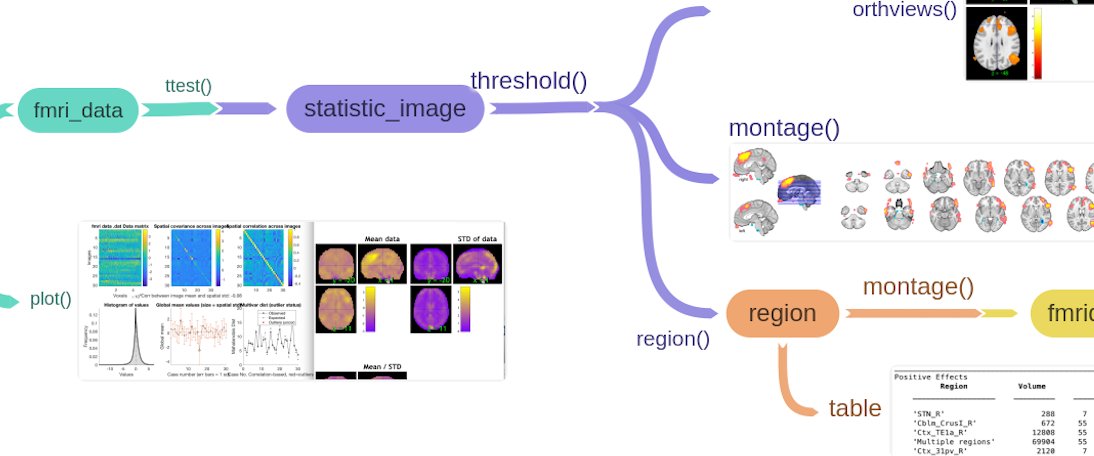
CANlab object-oriented image analysis workflow map
CANlab object-oriented image analysis workflow map. Lecture 1.2b slides (Wager)

Outline

What the session covers

01Course files and folder structure

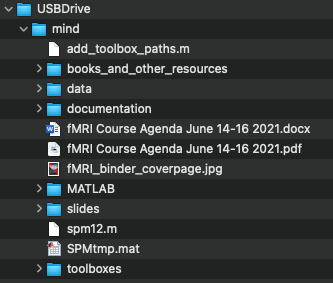
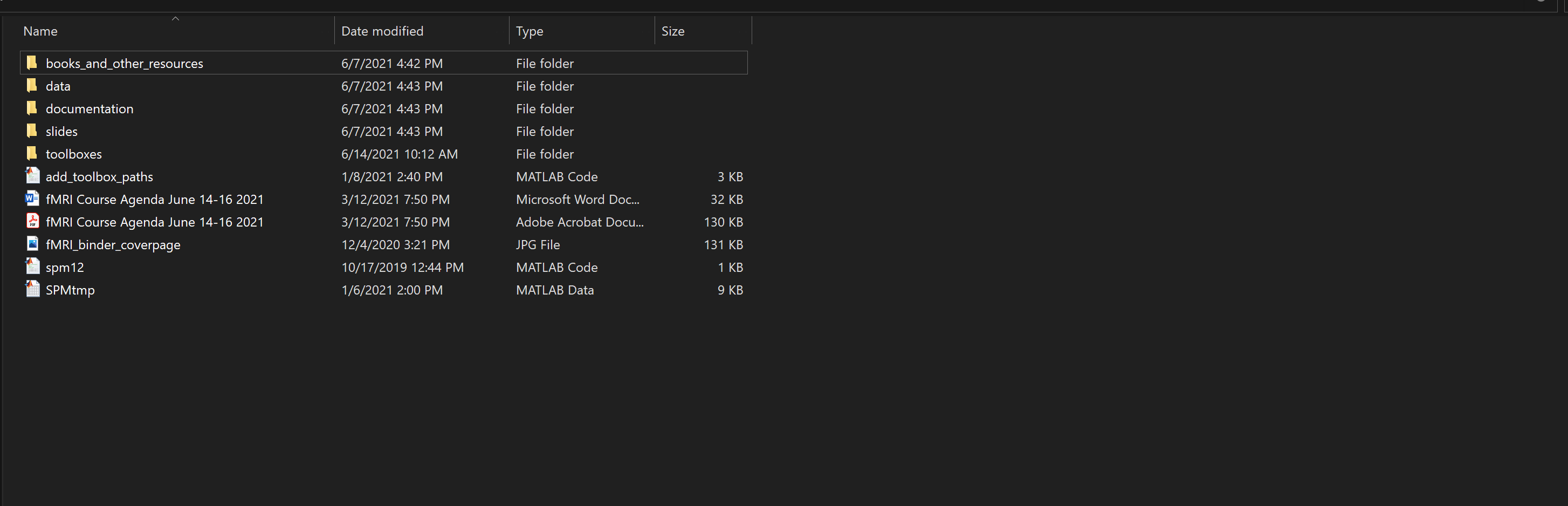
  • The shared Dropbox folder contains data (course datasets), toolboxes (SPM and other code), and slides (PPT, Keynote, PDF).
  • Put the whole thing in a folder called mind on your desktop or C: drive; all files must be in place before moving on.
  • If Dropbox reports a file-size error, go inside the folder and download subfolders one by one.
  • Keep the subfolder names toolboxes and data exactly, or add_toolbox_paths.m will not find them.

02Installing MATLAB

  • Use the trial link and license file provided (instructions in MATLAB-installation080625.pdf), or your own copy.
  • Compatibility across hardware (e.g., Apple M-series), OS, MATLAB, and SPM is a moving target; the best test is to try it.
  • Versions before 2019 probably will not work; incompatibility usually shows as MATLAB or SPM failing to open.
Blue-toned voxel correlation matrix graphic
Blue-toned voxel correlation matrix graphic. Lecture 1.2b slides (Wager)

03Setting up the MATLAB path

  • Navigate to the mind folder by dragging it into the Command Window or with cd('path/to/mind').
  • Type add_toolbox_paths to run the script that adds SPM and toolboxes.
  • pathtool shows the path graphically; MATLAB searches from top to bottom, and you can add folders and save from there.
  • Type spm fmri; the SPM windows should appear.

04Permissions and Mac security

  • You need privileges to write files and install software; organization-managed machines may block this.
  • MEX errors on Mac: remove quarantine with xattr -dr com.apple.quarantine on the spm12 folder and the MATLAB app, then spctl --add the .mexmaci64 files.
  • Alternatively disable Gatekeeper with sudo spctl --master-disable for the course and re-enable it afterward with sudo spctl --master-enable.
  • Apple Silicon (M1 to M4): unquarantine .mexmaca64 and .mexmaci64 files inside the GIFT icatb folder with find and xattr.
  • System Settings > Security & Privacy may also let you grant MATLAB permission.

05Common errors

  • Undefined function or variable means MATLAB cannot find it: usually a missing path entry or a misspelling.
  • Never have multiple versions of SPM on the path at once.
  • Avoid toolboxes or your own scripts that share names with built-in MATLAB functions; heed the shadowing warnings MATLAB prints at startup.

06Looking ahead: version control and CANlab tools (optional)

  • GitHub lets you share, reuse, track history, integrate changes from multiple contributors, and revert.
  • Install GitHub Desktop, sign in, and clone repositories with the green Code button; pull to synchronize later.
  • CANlab repositories to clone: CanlabCore, Neuroimaging_Pattern_Masks, MediationToolbox, RobustToolbox; then run canlab_toolbox_setup.
  • Resources: Principles of fMRI (leanpub), canlab.github.io tutorials and walkthroughs, and fMRI methods chapters at sites.dartmouth.edu/canlab.
PINES negative-affect signature rendered on cortical surfaces — Chang et al. (2015), PLoS Biology

Hands-on

Step by step

The walk-through below is distilled from the course cheat sheets. Data paths refer to the course Dropbox folder (e.g. data/auditory_oddball).

  1. Download the course folder from the shared Dropbox link into a folder named mind on your desktop or C: drive; download subfolders separately if you hit a size limit.
  2. Confirm the structure mind/data, mind/toolboxes, mind/slides matches Dropbox.
  3. Install MATLAB using the provided trial link and license (or use your own recent version).
  4. Open MATLAB and navigate to the mind folder (drag-and-drop into the Command Window, or cd('...mind')).
  5. Type add_toolbox_paths to add SPM and the toolboxes to your path.
  6. Type pathtool to inspect the path; make sure only one SPM version is present.
  7. Type spm fmri and confirm the SPM windows open.
  8. Mac only, if you get MEX or permission errors: run xattr -dr com.apple.quarantine on spm12 and the MATLAB app, or sudo spctl --master-disable (re-enable after the course).
  9. Apple Silicon only: unquarantine .mexmaca64 and .mexmaci64 files in gift/GroupICAT/icatb.
  10. Optional: install GitHub Desktop, clone CanlabCore and related repositories, and run canlab_toolbox_setup.
Install steps for the course toolboxes — full cheat sheet

Install steps: SPM fMRI Course

Summary

  1. Download the USBDrive folder from Dropbox to your hard drive

  2. Install Matlab

  3. Set up Matlab Path by adding SPM and other toolboxes

  4. Beware of common errors

Steps

Download the USBDrive folder from Dropbox to your hard drive

  • You may have to do this in several pieces, if your Dropbox/browser says it’s too big

  • Arrange the files (if needed) on your local hard drive to match the structure in Dropbox

Mac:

Windows (this shows the contents of the USBDrive/Mind folder:

Install Matlab

  • You should have received a link and license file to download a trial version of Matlab. Follow the instructions to install

  • You can use your own version of Matlab if you already have it

  • Very old versions of Matlab (pre-2019) probably won’t work.

  • Very new versions should work, but know that maintaining compatibility between Matlab, SPM, and the operating systems is an ongoing challenge. The best way is to try it and see. If there are compatibility issues it will usually result in either Matlab or SPM not opening at all.

Set up Matlab Path by adding SPM and other toolboxes

  • The easiest way is to find the folder in your Finder (Mac) or Explorer (PC) and drag and drop it to your Matlab Command Window.

  • You can also type it in in the Matlab

    • cd('my_path_name’), e.g., cd(‘/Users/torwager/…USBDrive/mind')

Type add_toolbox_paths

  • This runs the script add_toolbox_paths.m.

  • Another helpful thing to do is type pathtool. This shows a graphical picture of your path. Matlab looks for files and functions in order, from “top” to “bottom” on the path. You can add folders “manually” from here and save the path, too.

  • When this is done, type spm fmri, and you should get the SPM windows.

Beware of common errors

  • ??? Undefined function or variable means that Matlab can’t find either a variable or function (program) named whatever you typed in. Usually this is because a function (like spm.m) hasn’t been added to your Matlab path, or you’ve mis-spelled it.

  • Don’t include multiple versions of SPM on your path

  • Don’t include toolboxes with variables named the same thing as internal Matlab functions. This can cause errors when SPM (or another toolbox) runs a DIFFERENT function from what was intended, with the same name. Matlab checks for this and gives you a warning when you open it. Pay attention to those. And don’t name program (executable scripts or functions) with the same name as Matlab built-in functions.

From the instructors' research

Related figures

Examples of these concepts in published work by the course instructors.

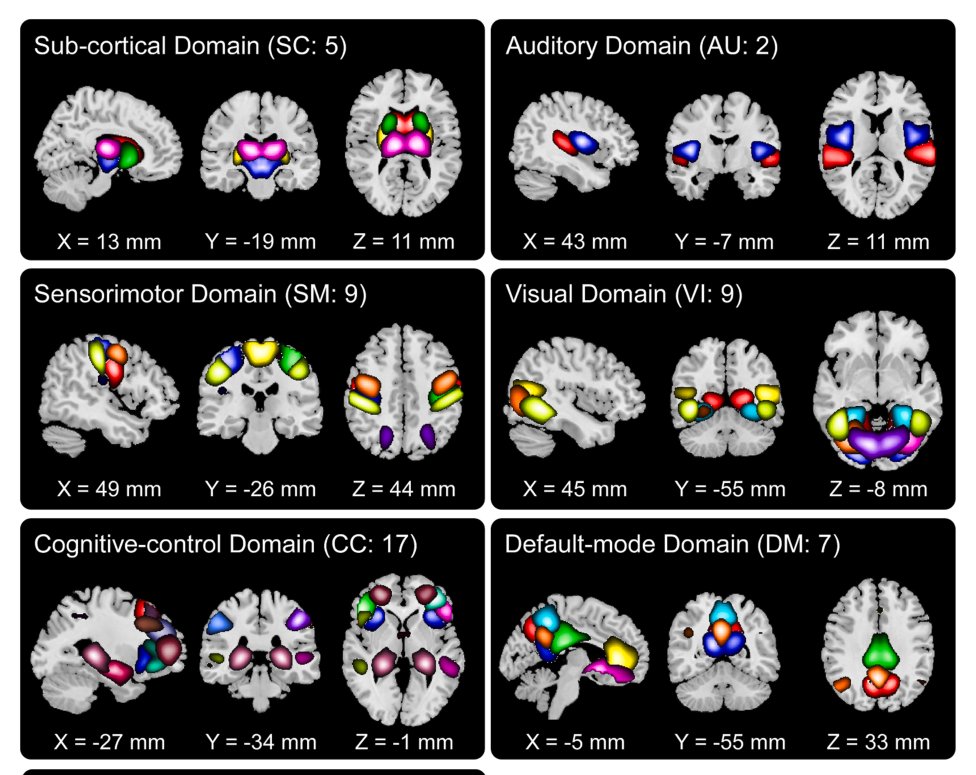
NeuroMark network templates by functional domain
NeuroMark network templates by functional domain. Du et al. (2020), NeuroImage: Clinical
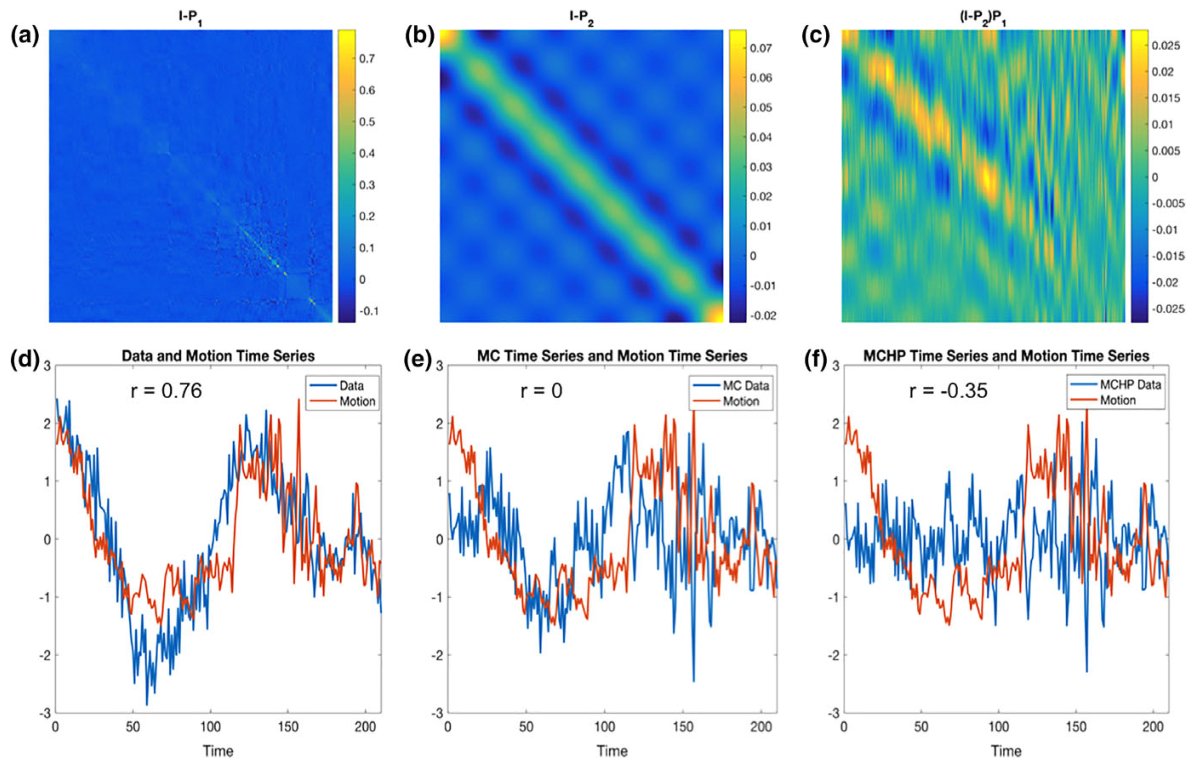
Projection matrices and motion-correlated time series across pipelines
Projection matrices and motion-correlated time series across pipelines. Lindquist et al. (2019), Human Brain Mapping